
Does your iPhone keep alerting you that you’ve run out of storage space? Not having enough storage could limit your activities like capturing new pictures, downloading new applications, or updating software.
The good news is that you don’t have to uninstall all the files on your device to gain additional storage space. You just have to manage your applications and some settings on your phone to effectively utilise the remaining space.
Are you looking for how to clear storage on iPhone? Here are 10 helpful methods for clearing storage space on your iPhone.
Why Is Your iPhone Storage Full?
All these photos, videos, applications, messages, downloads, and temporary system files can consume a lot of memory over time.
Photo files and videos in high resolution are usually responsible for this problem, particularly when you often take videos. It may also be caused by the additional memory consumed by applications. Furthermore, apps like WhatsApp can accumulate a number of media files.
Moreover, the amount of System Data on an iPhone changes from time to time for different reasons.
How to Check What’s Taking Up Space on Your iPhone?
First and foremost, you should determine which applications use the most amount of storage space.
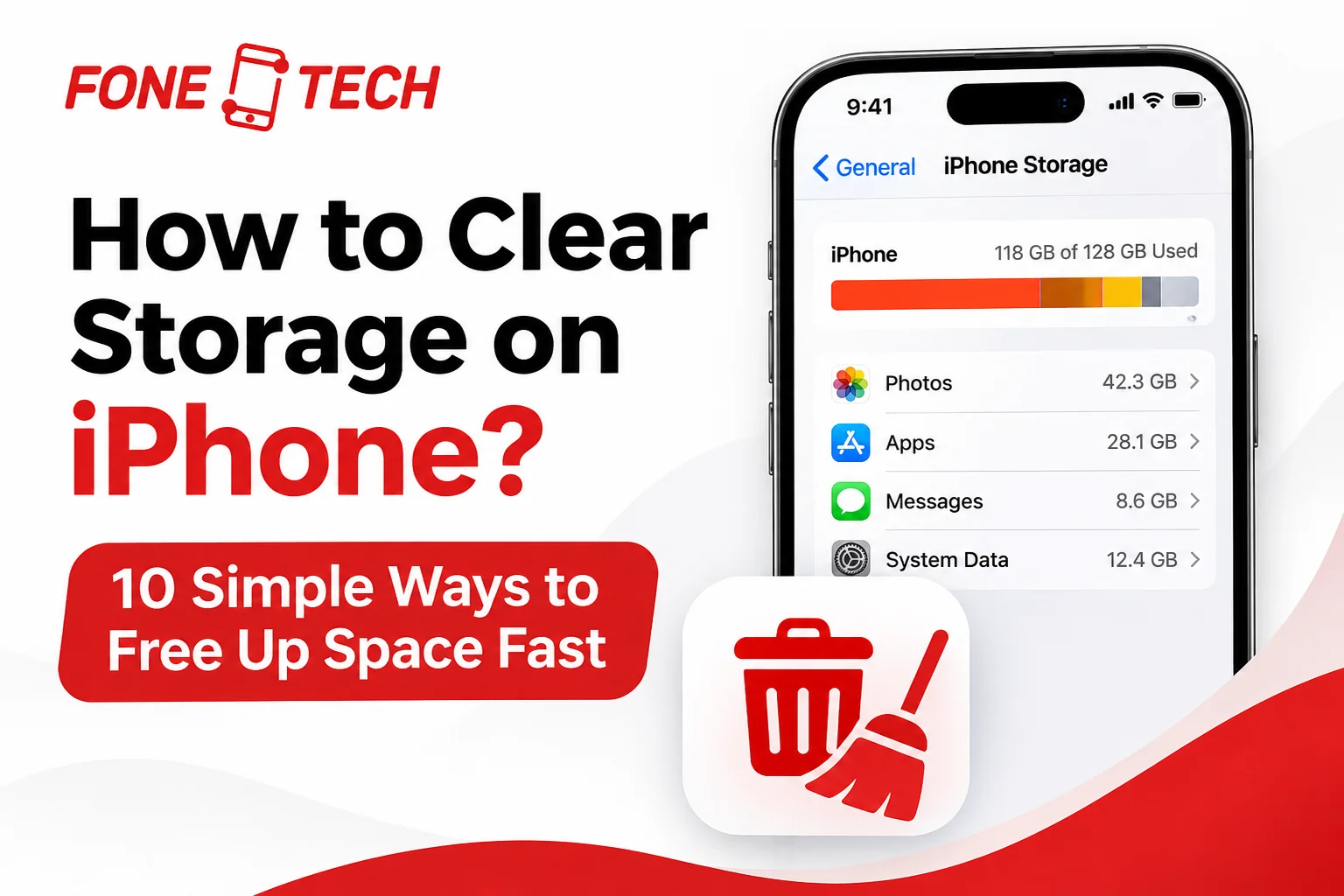
Go to Settings -> General -> iPhone Storage and wait for the storage information to be displayed on your screen. This will include your remaining storage capacity, application storage size, and recommendations on how to manage the storage space.
You can tap on each application to see its size and related documents & data.
How to Clear Storage on iPhone: 10 Easy Ways
1. Delete Unnecessary Photos and Videos
Photos and videos will quickly fill up the available space on your iPhone, especially if you often take pictures and record videos at high resolution.
Go to the Photos app and look through your albums. Get rid of all unwanted screenshots, duplicate images, and old videos that you don’t need anymore.
Do not delete any valuable photos before backing them up, because if iCloud Photos is turned on, you will be deleting them from other devices as well.
2. Clear the Recently Deleted Album
However, deleting photographs will not immediately erase them from the device, as they will remain in Recently Deleted for up to 30 days.
Photos > Recently Deleted album > unlock it if asked. Choose to delete all the photographs that you do not need anymore.
Make sure of what you are doing, as the photos will be permanently deleted and can’t be accessed via the Photos app later on.
3. Remove Unused Apps
Old applications that are not used anymore might take up precious storage space, especially large games and editing applications.
Open the Settings menu → General → iPhone Storage, choose an old application that you don’t require anymore, and click on Delete Application.
Deleting an app deletes both the application and its local storage content. It is best to back up any critical information before deleting apps with important documents.
4. Offload Apps You Rarely Use
In order to reclaim space without having to delete an application’s documents and data, offloading can be helpful.
To proceed with offloading, go to Settings > General > iPhone Storage, pick the application, and then click Offload App.
The process deletes your application while preserving its documents and data. This way you’ll still be able to reinstall it if the application remains available.
Offloading is especially good for applications that you use infrequently.
5. Clear Safari Cache and Browsing Data
This allows Safari to save your browsing history, cookies, and website data so that your browsing experience can be enhanced. Deleting these things will free up some space.
Navigate to Settings > Apps > Safari and tap Clear History and Website Data. Select the time frame from the options provided.
Do keep in mind that deleting this information may delete your browsing history and log you out of certain websites.
6. Delete Old Messages and Large Attachments
Messages may carry photos, videos, or documents that start to take up considerable space over time.
Tap Settings > General > iPhone Storage > Messages to identify large files and messages.
Delete unneeded files. You can set the message retention via Settings > Apps > Messages > Keep Messages to avoid storing old messages.
It is worth noting that changing retention options can cause old messages to be automatically deleted.
7. Remove Downloaded Videos, Music and Files
Files used to be downloaded tend to take up large amounts of space when stored in your iPhone memory. Open these applications and delete the files that have already been successfully downloaded.
Check in Files ➪ Downloads and On My iPhone for those files you do not require anymore. Once you have deleted these files, make sure you go through the Recently Deleted section in Files.
8. Review WhatsApp Storage and Media
WhatsApp can generate many media files via conversations and chat groups.
Open WhatsApp and go to Settings → Storage & Data → Manage Storage, and look at the media files that are consuming the maximum storage.
Delete any video and picture files you do not need. You can also change the settings for automatic downloading of media files.
Before you delete anything, please check your backups.
9. Optimise Your iCloud Photos Settings
When images use up space on your iPhone, the iPhone Storage Optimisation setting from Apple will come in handy.
In Settings, choose Your Apple ID → iCloud → Photos and turn Sync This iPhone On. From there, you should opt to Optimise iPhone Storage.
This way, all images are going to be stored in their high resolution via iCloud, but only the reduced version of them will be stored on your iPhone.
For this to work well, there must be enough iCloud storage capacity for your photo library.
10. Review and Manage iPhone System Data
System Data includes files, caches, and other resources needed for iOS and apps.
The size of System Data varies, and there is no one setting that clears everything. But you can reset your iPhone, update iOS, and clear unwanted data from apps.
Wait a while for the device to recalculate its storage space. Do not use third-party cleaners that claim to clear everything from the System Data folder.
How Do I Clear a Cache on My iPhone?
Cleaning the cache depends on the app being used.
Other apps may have cache-cleaning capabilities, but there is no one cache-cleaning button in iOS.
In case an app uses too much memory, deleting and reinstalling it would help to clean its local cache. But this will lead to losing any documents and saved data, so better to make sure about the availability of backups first.
Cleaning the cache won’t necessarily give extra space, as the amount of space gained depends on the amount of temporary data collected.
Why Is My iPhone Storage Still Full After Deleting Everything?
Should you receive the warning of storage on your iPhone, some deleted or temporary files might still be occupying space.
Recently Deleted Photos Are Still Taking Up Space
Photos and videos stay in Recently Deleted for 30 days unless you delete them permanently. Should you need to free space right away, check this album.
Apps Still Have Stored Data and Cache
The deletion of data within an app doesn’t always mean that all documents and cache are deleted. Checking storage by apps will show you what is left.
Messages and Attachments Are Using Storage
Deleting a few messages will not make any difference when other messages have big photos and videos attached. Check the attachments in Messages to see which files are the biggest.
System Data Is Taking Up Too Much Space
System Data may increase temporarily due to file management and apps on your iPhone. Restarting your device and updating it might help; however, there is no sure way to delete it manually.
What Happens When Your iPhone Storage Is Completely Full?
If your iPhone has exhausted its storage space, some functions will stop operating normally.
You might find yourself not able to save new images, download apps, and apply iOS updates. You might also find that your apps have trouble saving data, or your downloads may fail.
However, having storage full does not necessarily mean that your iPhone is faulty. Most of the time, analyzing and deleting unnecessary content will be the first step to solving your problem.
When Should You Get Professional iPhone Help?
If your iPhone still continues to freeze, restart, or show abnormal storage notifications despite file management, there might be a need for more troubleshooting.
There could be issues to do with iOS, application data, or other faults on your phone. Professional advice will enable you to identify the problem without necessarily performing a reset or changing the software.
Feel free to get in touch with our iPhone repair team at Fonetech Lancaster to talk about your problems with your phone.
It is worth noting that getting your iPhone repaired does not increase its internal storage.
Frequently Asked Questions
How Do I Free Up Storage on My iPhone?
Tap on “Settings” > “General” > “iPhone Storage” to find out what is consuming your storage. You could reclaim some of your storage space by deleting unneeded videos and other applications.
What Should I Delete When My Phone Storage Is Full?
Clear large videos, unwanted screenshots, software that is not being used anymore, and even download files when the internet connection is not required. You can also clear WhatsApp media and documents.
What Takes Up the Most iPhone Storage?
Pictures and videos are one of the main reasons behind consuming large amounts of space, especially when recorded at higher resolution. Another reason is bulky software and even games that have been downloaded.
Why Is My iPhone Storage Full Even After Deleting Everything?
“Recently Deleted” photos, application information, message attachments, and even “System Data” may still be taking up space. Go to the iPhone Storage tab to find out what is still there.
Does Deleting Texts Free Up Storage?
Yes. Deleting the conversations helps save space, especially in cases where there are pictures, videos, and other large attachments. It all depends on what is deleted.
Why Is My iPhone Storage Suddenly Full?
Storage space can be expanded unexpectedly due to recording big videos, downloading apps, receiving media via messages, or saving offline media. Automatic downloads and app storage are some other reasons for this phenomenon.
Conclusion: Keep Your iPhone Storage Under Control
Organising the storage of your iPhone becomes easy if you understand how to clear storage on iPhone and take time to check the photos, applications, downloads, and stored attachments. Making a few adjustments will help you ensure that storage messages do not come back.
In case you are still having issues with your device’s storage and performance, Fone Tech Lancaster is here to offer help on what to do next.
Visit our phone repair service in Lancaster or contact Fone Tech Lancaster for assistance.